This post contains affiliate links. If you make a purchase through these links, I may earn a commission at no extra cost to you.
I run a content site on self-hosted WordPress.org, so I know my way around WordPress in general. But a reader recently asked me whether WordPress.com would be a better starting point for a small business owner who just wants a site up fast, without dealing with hosting or plugins. Instead of guessing, I signed up for a WordPress.com test account and actually built one — a simple small-business presence, the kind of site a freelancer or local business owner might need in their first week online.
Here’s exactly what that process looked like, step by step.
Getting In and Setting Up
Signing up was fast. After creating my account, I landed on a screen called “My Home” — a dashboard with a setup checklist (mine showed 2 out of 6 steps complete right away, since some basics like email verification were already handled). There’s no separate hosting purchase, no software install, no FTP, nothing you’d normally deal with on a self-managed WordPress.org site. You’re inside a working site within minutes.
Building the Homepage
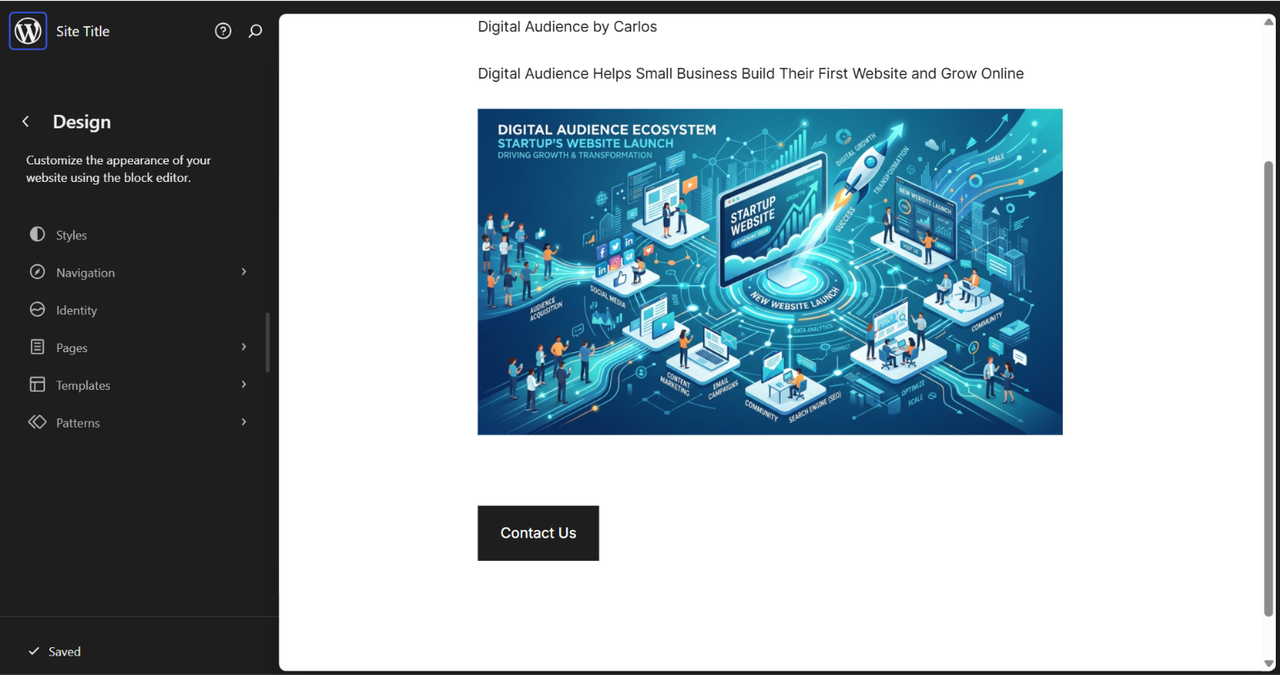
The homepage starts as a blank page with placeholder text (“Hello world!”). I replaced it with a real headline and built out the page using the block editor — the same Gutenberg-based editor used on self-hosted WordPress, so if you’ve ever touched WordPress before, almost nothing here is unfamiliar.
I added a heading, a paragraph describing the business, an image, and a call-to-action button. The block-by-block process was straightforward: click the “+” icon, search for a block type, drop it in. One small thing worth knowing if you’re new to this: typing a slash command like “/paragraph” only works as a shortcut when you’re on a completely empty line — if you’ve already started typing, it just shows up as literal text instead of inserting a block. I hit that exact snag mid-build. Minor, but worth knowing going in so it doesn’t slow you down.
Adding an About Page
Next I created a second page — About — and wrote a short description of the (fictional) business. Publishing it took one click, and immediately after, WordPress.com surfaced its own next-step suggestions: a page address to share, a QR code, and an option to add a payment button or donation form directly into the page, with no plugin required.
That last part stood out to me. On a self-hosted WordPress.org site, accepting a payment on a page means installing and configuring a plugin first — WooCommerce, a forms plugin with payment processing, something along those lines. Here, it was just an option sitting in the publish flow, ready to drop in. For a small business owner who wants to start taking deposits or sell a simple service without setting up a full store, that’s a meaningfully lower bar to clear.
Picking a Theme
I checked out the theme browser next. WordPress.com organizes themes by category — Blog, Portfolio, Business, Store, Art & Design, About, Real Estate, and more — which made it quick to filter down to something that actually fit a small business site instead of scrolling an undifferentiated list. I ended up on a clean, minimal theme called Assembler. Applying it took a single click, no manual install or activation step.
This is one area where the trade-off with WordPress.org is real: self-hosted WordPress has access to a much larger universe of themes, including fully custom-built ones. WordPress.com‘s library is smaller and more curated — which is actually a plus if you don’t want to spend hours comparing options, but a minus if you have a very specific look in mind that isn’t represented.
Checking the Plans
Before wrapping up, I looked at the actual pricing, since that’s the detail that matters most to a small business owner deciding whether this is worth it:
- Personal — $9/month, or $4/month billed annually
- Premium — $18/month, or $8/month billed annually
- Business — $25/month, billed annually
- Commerce — $45/month, billed annually
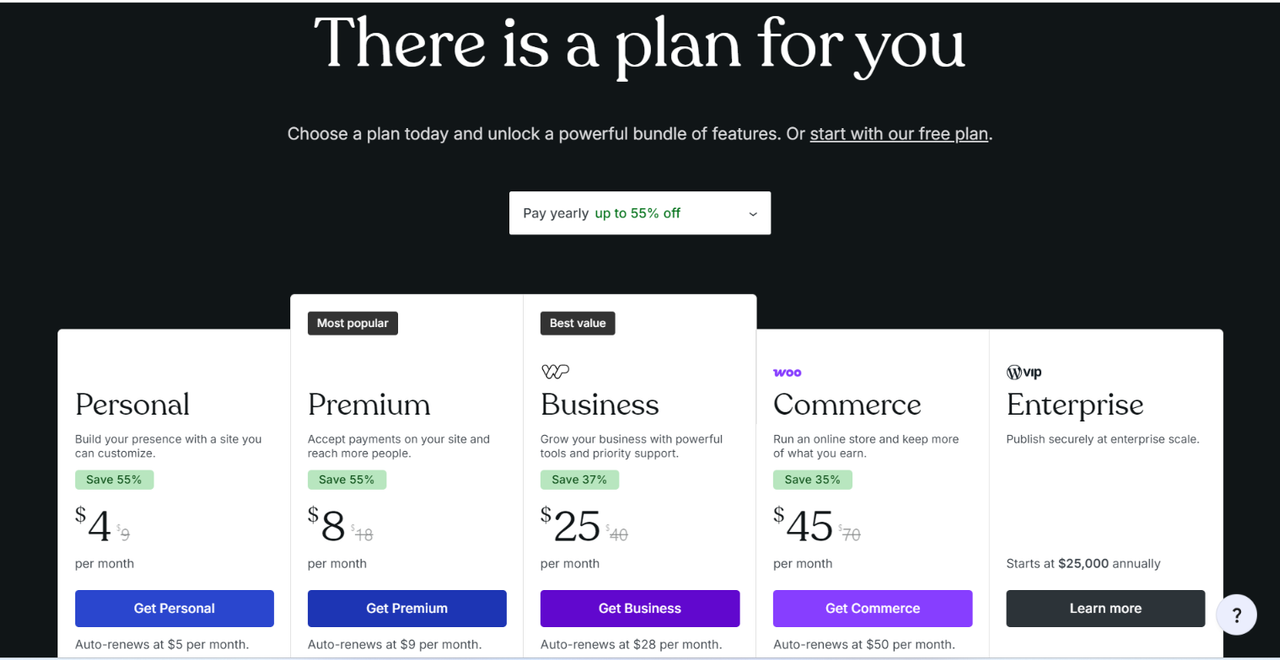
For a small business that just wants a clean homepage, an About page, and a contact or payment button, Premium looks like the realistic starting point — it’s the tier that unlocks accepting payments. Personal is cheaper but more limited; Business and Commerce only make sense once you need deeper plugin access or a full online store.
What I’d Flag as a Limitation
The honest drawback: plugin installation and deeper customization are locked behind the Business plan. If your small business ever needs something specific — a booking calendar plugin, custom CSS, a particular form integration — you’ll likely need to jump straight to Business, which is a real price increase from Premium, not a small step up. For a business with very simple needs, that’s not an issue. For one that grows past the basics quickly, it’s worth knowing upfront rather than discovering it later.
The upside that balances it out: I didn’t have to think about hosting, backups, or security updates once during this entire process. That’s work WordPress.com handles for you, and it’s work I do manage myself on my own WordPress.org site.
Who This Is Actually For
Based on what I saw building this, WordPress.com makes the most sense for a small business owner who wants something live quickly, doesn’t want to manage technical maintenance, and has fairly standard needs — a homepage, an About page, a way to take payments or bookings. If your business needs grow more specific or custom over time, you’ll want to know that the Business plan is where that flexibility opens up, and budget for it accordingly.
If you want to try building your own site the same way I did, WordPress.com has a free plan to start with, and you can compare the paid tiers on their pricing page.
About the author: Carlos Valiente is a digital marketer and the publisher of Digital Audience, where he writes about websites, content tools, and online business platforms. He has years of hands-on experience running a self-hosted WordPress.org site and regularly tests hosting and website-builder platforms for comparison content.