This post contains affiliate links. If you make a purchase through these links, I may earn a commission at no extra cost to you.
I run my own content site on self-hosted WordPress.org, but a lot of people who want to start a blog or a simple website don’t want to deal with hosting accounts, installs, or plugin management — they just want to publish. So I went through the entire process of starting a site on WordPress.com from scratch, the way a complete beginner would, and documented every step.
If you’re thinking about starting your first blog, portfolio, or small site, here’s exactly what to expect.
Step 1: Sign Up and Land on Your Dashboard
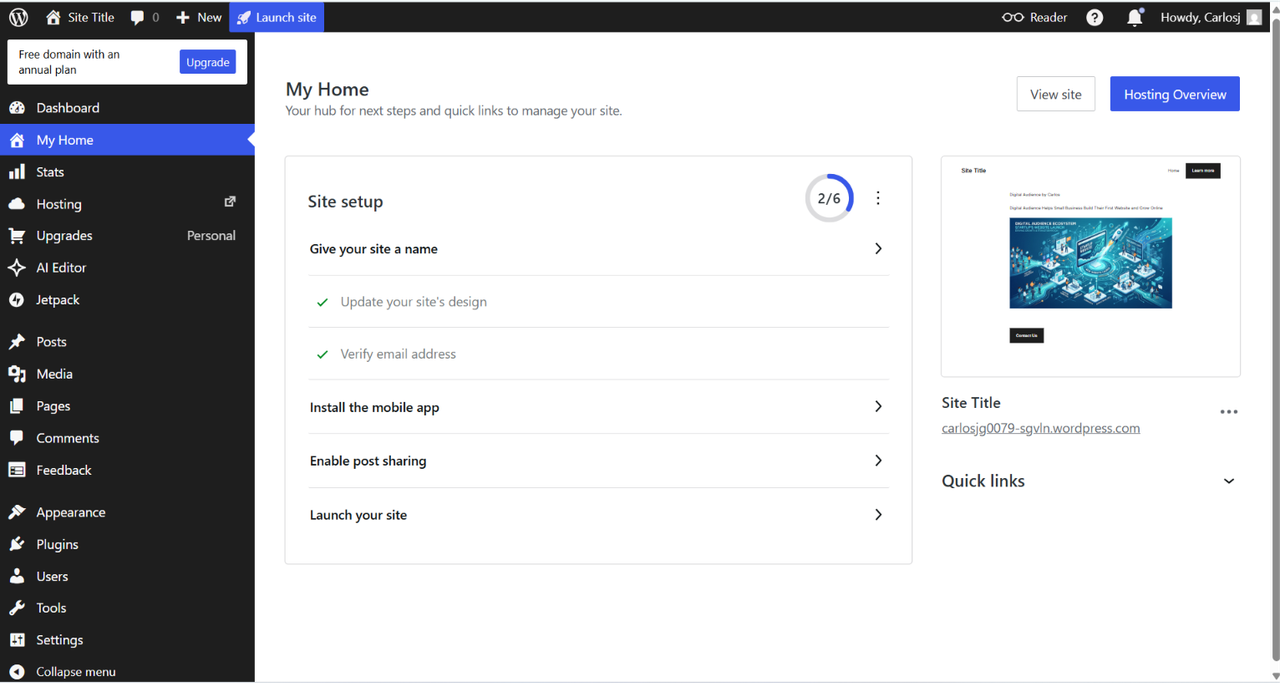
Creating an account on WordPress.com takes a couple of minutes. Once you’re in, you land on a screen called “My Home” — your dashboard. It includes a setup checklist that walks you through the basics: naming your site, verifying your email, picking a design. Mine showed progress already underway with a couple of steps automatically checked off.
This is the biggest difference from WordPress.org right out of the gate: there’s no separate hosting purchase, no software installation, no technical setup. You’re inside a working site within minutes of signing up.
Step 2: Build Your Homepage in the Block Editor
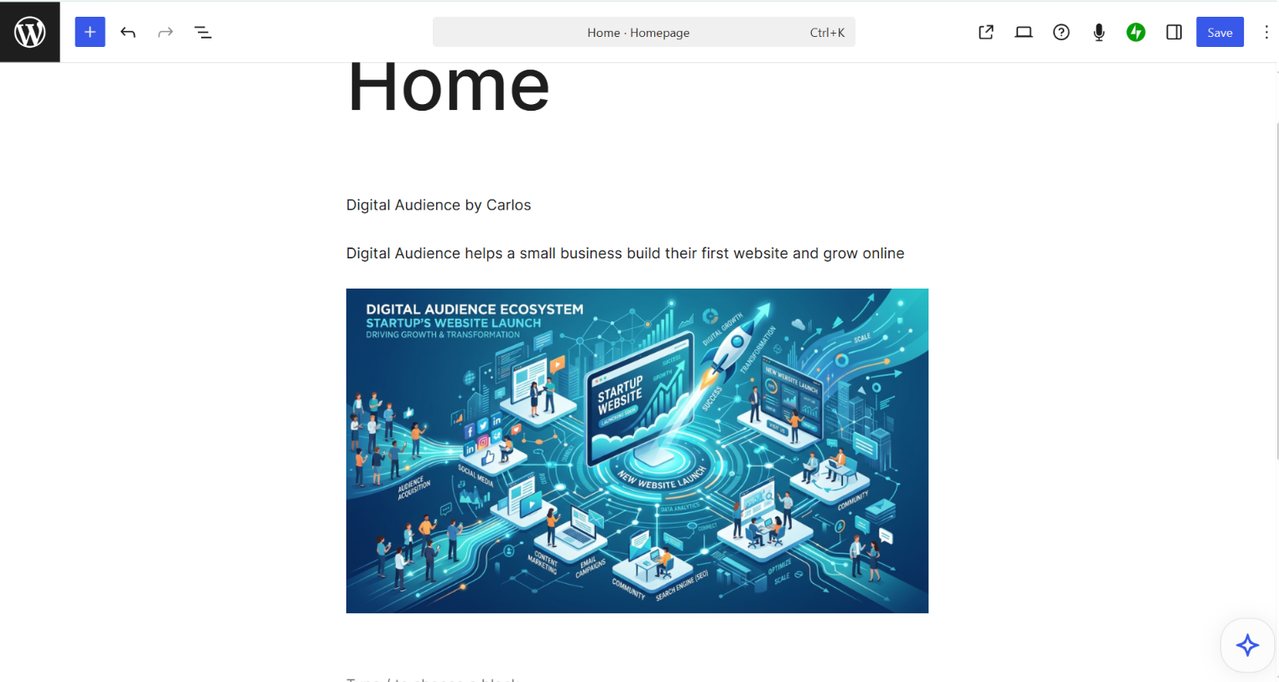
From the dashboard, opening your homepage drops you into the block editor — the same Gutenberg editor used on self-hosted WordPress. The page starts with placeholder text (“Hello world!”) that you replace with your own.
To add content, you click the “+” icon (or type “/” on an empty line) to insert a block — a heading, a paragraph, an image, a button, whatever you need. I built mine out with a heading, a paragraph, an image, and a call-to-action button, and the process took about ten minutes start to finish.
A tip that would have saved me a minute of confusion: the “/” shortcut only opens the block picker if you’re on a completely empty line. If you’ve already typed something in that block, typing “/paragraph” just adds those characters as literal text instead of inserting a new block. If that happens, just delete the text and try again on a fresh line.
Step 3: Add a Second Page
Most sites need more than a homepage. From the dashboard sidebar, go to Pages and add a new one — I created a simple About page. The same block editor opens, and you build it the same way as the homepage.
Once you hit Publish, WordPress.com immediately shows you the live page address, along with a few next-step options — including a QR code and, notably, a way to add a payment button or donation form directly into the page without installing a plugin. If you’re planning to sell something simple or accept tips/donations down the line, that’s worth knowing from the start.
Step 4: Choose a Theme
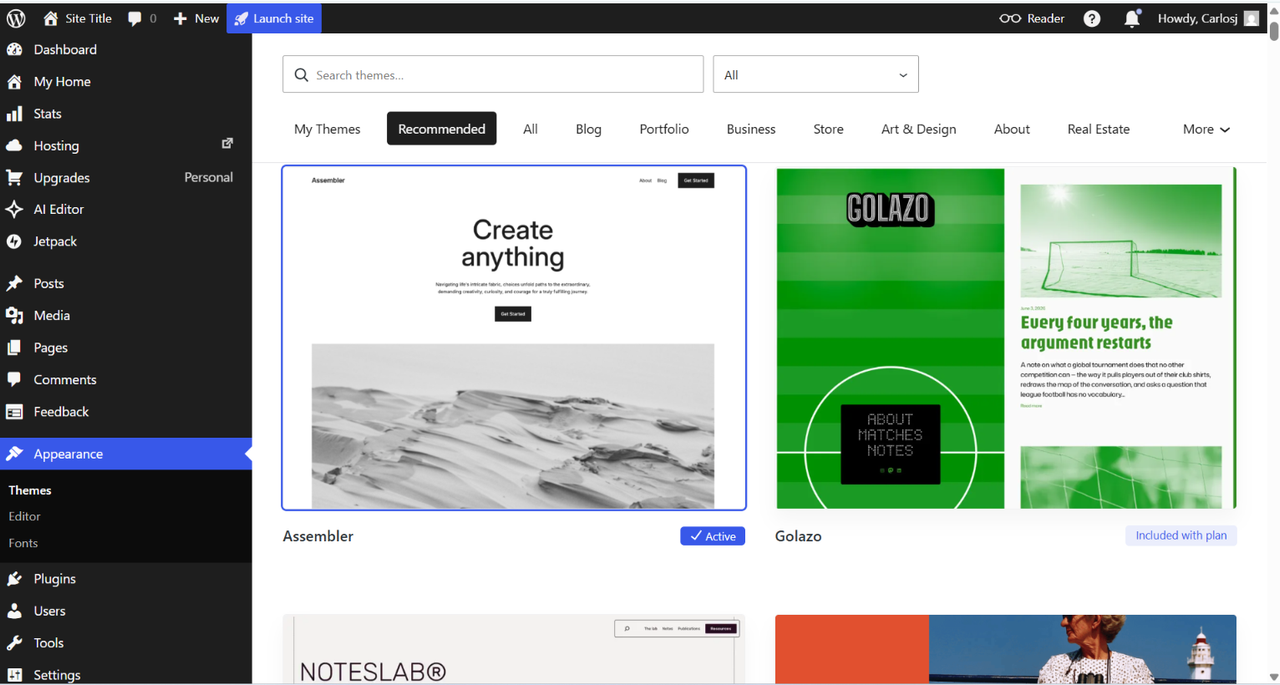
Next, head to Appearance → Themes from the dashboard sidebar. Themes are organized by category — Blog, Portfolio, Business, Store, Art & Design, and more — so you can filter to whatever matches your site instead of scrolling everything. Clicking a theme and then “Activate” applies it instantly; no manual installation step like you’d have on WordPress.org.
I’d recommend doing this early, even before you finish writing your pages, since the theme affects how your layout and blocks display.
Step 5: Understand the Plans Before You Commit
You can build and preview your site for free, but publishing a custom domain and unlocking most features requires a paid plan. Here’s what they cost:
- Personal — $9/month, or $4/month billed annually
- Premium — $18/month, or $8/month billed annually
- Business — $25/month, billed annually
- Commerce — $45/month, billed annually
For a first blog or simple personal site, Personal is enough to get a custom domain and the core features. Premium adds payment acceptance. Business is where plugin installation and deeper customization unlock — worth knowing if you think you’ll eventually want something specific that isn’t built in.
Step 6: Publish
Once your pages are built and you’re happy with the theme, the “Launch site” button in the top toolbar takes your site live. From there you can keep editing — publishing isn’t a one-time, irreversible step. You can go back into any page or post and update it whenever you want.
What I’d Tell a First-Timer
Honestly, the hardest part of this whole process wasn’t technical — it was deciding what to actually put on the page. The platform itself removes almost every technical barrier: no hosting decisions, no install, no plugin troubleshooting. If you’ve never built a website before, that matters a lot.
The one limitation worth knowing upfront: if you later want a very specific plugin or custom code, that requires the Business plan, which is a real cost jump from the lower tiers. For a first site where you’re still figuring out what you need, that’s not something to worry about on day one — but it’s worth knowing it exists before you’re three months in and hit a wall.
If you want to try building your own site the same way, WordPress.com has a free plan to start with, and you can see the full plan breakdown on their pricing page.
About the author: Carlos Valiente is a digital marketer and the publisher of Digital Audience, where he writes about websites, content tools, and online business platforms. He has years of hands-on experience running a self-hosted WordPress.org site and regularly tests hosting and website-builder platforms for comparison content.